凯~
文章11
标签12
分类4
如何建立一个室内3d导航项目(四)- 导航应用的基本组件

如何建立一个室内3d导航项目(四)- 导航应用的基本组件

如何建立一个室内3d导航项目(四)- 导航应用的基本组件

上一篇我们在mapbox地图中引入了模型,接下来笔者会介绍导航应用的基本组件和实现方式

一、定位模式

定位模式,即简单地显示用户所在位置定位点,不包括导航相关的功能。

关键组件:

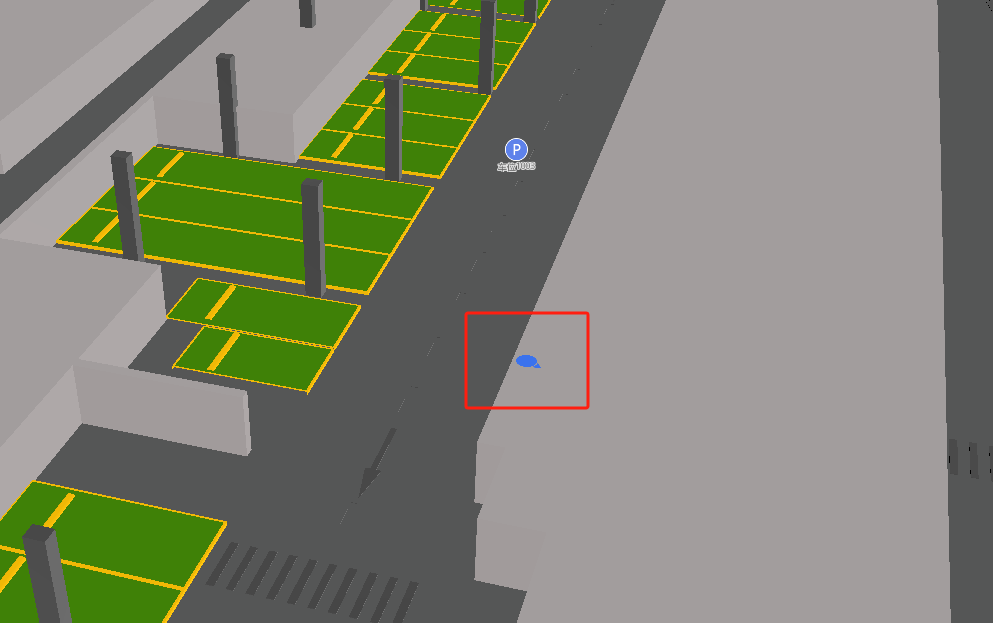
1.定位点三维平面箭头

如图,存在一个蓝色的三维箭头,紧贴三维平面,用于指示人员位置和方向。

image-20250522164739283

原本笔者以为实现这个箭头非常容易,但是三维场景的箭头并不能简单的用一个默认的marker或者Symbol Layer,因为这些元素默认是基于二维平面的,即地图无论如何旋转倾斜,marker或者Symbol Layer都只能基于屏幕2d显示,无法达到紧贴三维平面,随着三维平面一起移动旋转的效果。

查找简中互联网的相关资料,居然找不到任何解决方案,因此笔者走了很多弯路,甚至是想手动使用webgl渲染箭头图标,结果这类方法费时费力,并不是什么高效的方法,最好还是能找到现成的配置,可以让marker或者Symbol Layer组件能够紧贴地面。

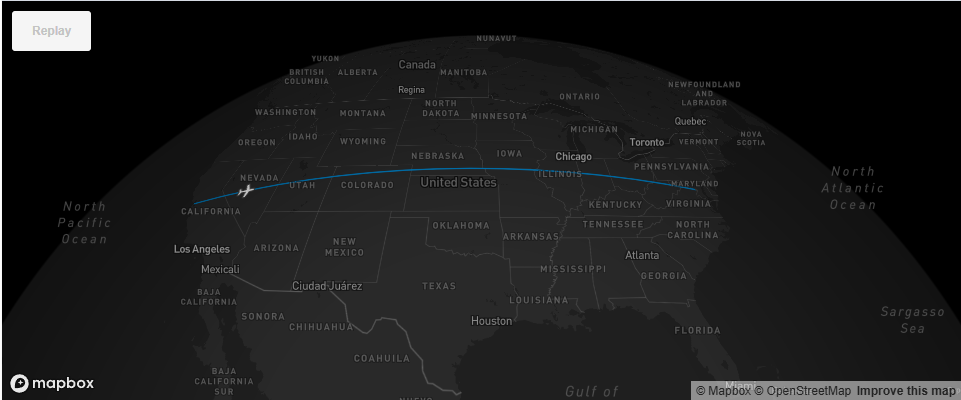
于是本着死马当活马医的心态,我开始将官网示例从头看到尾,希望能找到解决方法,果然在一个Symbol Layer动画示例中,飞机图标是紧贴地面飞行的,可以在三维场景中移动,如图,示例链接https://docs.mapbox.com/mapbox-gl-js/example/animate-point-along-route/

image-20250522171739111

我们找到了关键代码

1
'icon-rotation-alignment': 'map'//关键代码,当地图旋转时,图标也会根据地图的旋转角度进行旋转

图标的具体实现

1
2
3
4
5
6
7
8
9
10
11
12
13
14
15
16
17
18
19
20
21
22
23
24
25
26
27
28
29
30
31
32
33
34
35
mapInstance.loadImage('./arrow-mag.png', (error, image) => {
if (error) throw error;
mapInstance.addImage('mag-icon', image);
});
mapInstance.addLayer({
id: 'route-mag-layer',
type: 'symbol',
source: {
type: 'geojson',
data: {
type: 'FeatureCollection',
features: [{
type: 'Feature',
geometry: {
type: 'Point',
coordinates: [121, 31],
},
properties: {
'rotation': 90,
},
}, ],
},
},
layout: {
'icon-image': 'mag-icon',
'icon-size': 0.22,
'icon-rotation-alignment': 'map',//关键代码,当地图旋转时,图标也会根据地图的旋转角度进行旋转
'icon-allow-overlap': true,
'icon-ignore-placement': true,
'icon-rotate': ['get', 'rotation'],
},
paint: {
'icon-color': '#ff0000',
},
});

于是我们成功地实现了前图所展示的蓝色三维箭头。

二、导航模式

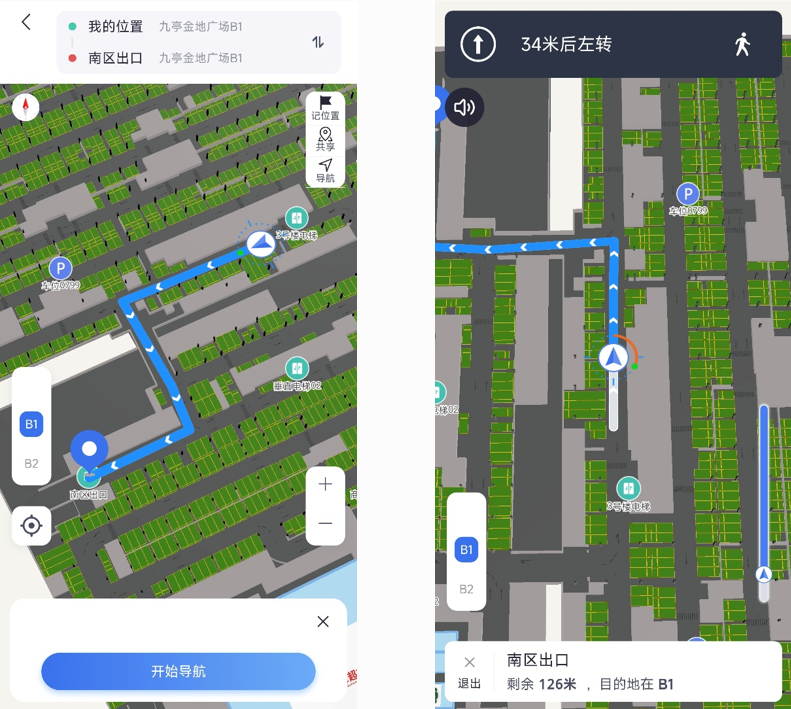
导航模式,相对于定位模式,就复杂的多,涉及到路线显示,定位箭头,定位纠偏指示器(还有地图之外的外围组件比如导航进度条、提示语,语音提示等,我们暂时放到后面的文章讨论)

先展示实现效果预览

image-20250522175955550

本篇文章我们先介绍导航地图组件的静态实现

1.路线显示

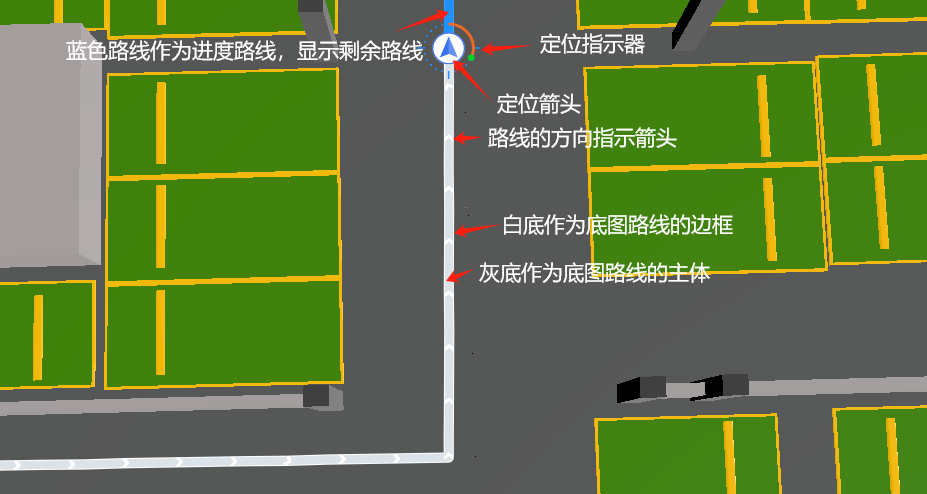
想要实现带箭头的路线,主要工作是样式的调整,需要创建多个图层组合显示,分为底图路线(路线请求后保持不变,不随导航进度变化)、进度路线(当前导航进度的剩余路线)、箭头图标图层(特殊的line图层,显示在最顶层指示路线方向,也不随导航进度变化),

效果如图:

image-20250523164055011

下面是具体的代码实现:

1
2
3
4
5
6
7
8
9
10
11
12
13
14
15
16
17
18
19
20
21
22
23
24
25
26
27
28
29
30
31
32
33
34
35
36
37
38
39
40
41
42
43
44
45
46
47
48
49
50
51
52
53
54
55
56
57
58
59
60
61
62
63
64
65
66
67
68
69
70
71
72
73
74
75
76
77
78
79
80
81
82
83
84
85
86
87
88
89
90
91
92
93
94
95
96
97
98
99
100
101
mapInstance.addSource('route', {//白色路线数据源
type: 'geojson',
data: {
type: 'Feature',
geometry: {
type: 'LineString',
coordinates: [],
},
},
});

mapInstance.addLayer({//白色路线,作为底图路线的边框
id: 'route-line',
type: 'line',
source: 'route',
layout: {
'line-join': 'round',
'line-cap': 'round',
},
paint: {
'line-color': '#FFFFFF', // 路线颜色
'line-width': 10, // 线条宽度
},
});

mapInstance.addSource('route-before', {//灰色路线数据源,和白色路线一致
type: 'geojson',
data: {
type: 'Feature',
geometry: {
type: 'LineString',
coordinates: [],
},
},
});

mapInstance.addLayer({//灰色路线,作为底图路线的主体
id: 'route-line-before',
type: 'line',
source: 'route-before',
layout: {
'line-join': 'round',
'line-cap': 'round',
},
paint: {
'line-color': '#dbe2e8', // 路线颜色
'line-width': 8, // 线条宽度
},
});

mapInstance.addSource('route-after', {//蓝色路线数据源
type: 'geojson',
data: {
type: 'Feature',
geometry: {
type: 'LineString',
coordinates: [],
},
},
});

mapInstance.addLayer({//蓝色路线,作为进度路线,显示剩余路线
id: 'route-line-after',
type: 'line',
source: 'route-after',
layout: {
'line-join': 'round',
'line-cap': 'round',
},
paint: {
'line-color': '#1E90FF', // 路线颜色
'line-width': 10, // 线条宽度
},
});

// 3. 创建箭头图标图层
mapInstance.addLayer({//箭头图标图层,绑定底图路线
id: 'route-arrows',
type: 'symbol',
source: 'route',
layout: {
'symbol-placement': 'line',
'symbol-spacing': 40, // 箭头间距
'icon-image': 'arrow-icon', // 设置箭头图标(请确保在 mapbox-gl 中注册该图标)
'icon-size': 0.35, // 调整箭头大小
},
paint: {
'icon-color': '#1E90FF', // 箭头颜色
},
'layer': {
'paint': {
'symbol-sort-key': 1 // 此属性保证箭头在最上层显示
}
}
});

// 4. 注册箭头图标
mapInstance.loadImage('./arrow.png', (error, image) => {
if (error) throw error;
mapInstance.addImage('arrow-icon', image);
});

上述路线叠加,分别设定route、route-before(均为全程路线经纬度列表),route-after(剩余路线经纬度列表),即可生成一个完整的导航路线。

2.定位箭头

原理同定位模式的定位箭头,因为我们要加上定位纠偏指示器,故将定位箭头的功能放到纠偏指示器内一起实现,此组件不单独实现。

3.定位纠偏指示器

为手机端专用,指示手机的朝向(通过磁力计数据确定航向角),因为导航模式中,定位箭头的朝向永远固定在线路的方向上,当我们实际导航并不沿着线路去行走时,需要定位纠偏指示器提示我们的方向偏离了路线。显然这个功能通过原生mapbox组件是无法很方便地实现的,所以我们得借用canvas动态绘制指示器,再通过图片更新的方式,实时更新定位箭头,由此实现该功能。

以下为代码实现:

1
2
3
4
5
6
7
8
9
10
11
12
13
14
15
16
17
18
19
20
21
22
23
24
25
26
27
28
29
30
31
32
33
34
35
36
37
38
39
40
41
42
43
44
45
46
47
48
49
50
51
52
53
54
55
56
57
58
59
60
61
62
63
64
65
66
67
68
69
70
71
72
73
74
75
76
77
78
79
80
81
82
83
84
85
86
87
88
89
90
91
92
93
94
95
96
97
98
99
100
101
102
103
104
105
106
107
108
109
110
111
112
113
114
115
116
117
118
119
120
121
122
123
124
125
126
127
128
129
130
131
132
133
134
135
136
137
138
139
140
141
142
143
144
145
146
147
148
149
150
151
152
153
154
155
156
157
158
159
160
161
162
163
164
165
166
167
168
169
170
171
172
173
174
175
176
177
178
179
180
181
182
183
184
185
186
187
188
189
190
191
192
193
194
195
196
197
198
199
200
201
202
203
204
205
206
207
208
209
210
211
212
213
214
215
216
217
218
219
220
221
222
223
224
225
226
227
228
229
230
231
232
233
234
235
236
237
238
239
240
241
242
243
244
245
246
247
248
249
250
251
252
253
254
255
256
257
258
class LocationLayer {//绘制定位纠偏指示器的canvas类
constructor(mapView) {
this.mapView = mapView;

// 定位指示器的线条宽度和指示点的大小,初始化值
this.compassRadius = 50;
this.compassLocationCircleRadius = 2;
this.compassLineWidth = 3;
this.compassLineLength = 16;
this.compassArcWidth = 6.0;
this.compassIndicatorCircleRadius = 7;

this.COMPASS_DELTA_ANGLE = 15.0;

this.circlePaint = {
color: '#1E90FF' // Default circle color
};

this.compassLinePaint = {
color: '#1E90FF',
width: this.compassLineWidth
};

this.indicatorCirclePaint = {
color: '#03d327', // Indicator circle color
shadowColor: '#909090'
};

this.indicatorArcPaint = {
color: '#ed6928', // Indicator arc color
width: this.compassArcWidth
};

// Load compass bitmap (assuming it's available as a data URI or in assets)
this.compassIndicatorArrowBitmap = new Image();
this.compassIndicatorArrowBitmap.src = './indicator-icon.svg';

// Initialize rotation angles
this.compassIndicatorCircleRotateDegree = 0;
this.compassIndicatorArrowRotateDegree = 0;
}

// Method to simulate setting values (similar to `setValue()` in Android code)
setValue(value) {
return value; // In JS, we directly return the value or perform any transformations
}

// Method to handle canvas drawing and return canvas object
drawCanvas(compassIndicatorCircleRotateDegree) {
const canvas = document.createElement('canvas');
const ctx = canvas.getContext('2d');

// Set canvas size (you can adjust based on your requirements)
canvas.width = 200;
canvas.height = 200;

// Set the rotation degree for the compass indicator
this.compassIndicatorCircleRotateDegree = compassIndicatorCircleRotateDegree;

// Mock current position (you can adjust as needed)
const goal = {
x: 100,
y: 100
}; // Center of the canvas

this.drawCompass(ctx, goal);

return canvas;
}

// Method to draw the compass
drawCompass(ctx, goal) {
for (let i = 0; i < 360 / this.COMPASS_DELTA_ANGLE; i++) {
// Save the current state of the canvas
ctx.save();

// Translate the canvas to the center point (goal)
ctx.translate(goal.x, goal.y);

// Convert angle to radians and rotate canvas
const angle = (this.COMPASS_DELTA_ANGLE * i) * Math.PI / 180;
ctx.rotate(angle);

// Draw compass lines at major compass directions (0, 90, 180, 270 degrees)
if (i % (90 / this.COMPASS_DELTA_ANGLE) === 0) {
// Draw compass lines
ctx.beginPath();
// Calculate starting and ending points of the lines (relative to the goal)
ctx.moveTo(0, -this.compassRadius + this.compassLocationCircleRadius);
ctx.lineTo(0, -this.compassRadius + this.compassLocationCircleRadius - this.compassLineLength);
ctx.lineWidth = this.compassLineWidth;
ctx.strokeStyle = this.compassLinePaint.color;
ctx.stroke();
} else {
// Draw small compass circles
ctx.beginPath();
// Draw circles around the compass radius (relative to the goal)
ctx.arc(0, -this.compassRadius, this.compassLocationCircleRadius, 0, 2 * Math.PI);
ctx.fillStyle = this.circlePaint.color;
ctx.fill();
}

// Restore the canvas state (i.e., undo the rotation and translation)
ctx.restore();
}

//this.compassIndicatorArrowRotateDegree = 0;

//this.compassIndicatorCircleRotateDegree = 30;

// Draw compass indicator arc
if (this.compassIndicatorArrowBitmap) {
let arcDeg = false;
let arcStartAngle = (-90 + this.compassIndicatorArrowRotateDegree) * Math.PI / 180; // Convert to radians
let arcEndAngle = (-90 + this.compassIndicatorCircleRotateDegree - this.compassIndicatorArrowRotateDegree) * Math.PI / 180; // Convert to radians
const radius = this.compassRadius;


if (this.compassIndicatorCircleRotateDegree - this.compassIndicatorArrowRotateDegree < 0) {
arcDeg = true;
}

ctx.beginPath();
ctx.arc(goal.x, goal.y, radius, arcStartAngle, arcEndAngle, arcDeg); // Use radians
ctx.lineWidth = this.compassArcWidth;
ctx.strokeStyle = this.indicatorArcPaint.color;
ctx.stroke();

ctx.save();
ctx.translate(goal.x, goal.y);
ctx.rotate(this.compassIndicatorArrowRotateDegree * Math.PI / 180); // 旋转箭头
const arrowWidth = 90;
const arrowHeight = 90;

// 绘制箭头图像
ctx.drawImage(
this.compassIndicatorArrowBitmap,
-arrowWidth / 2, // 水平居中
-arrowHeight / 2, // 垂直位置偏移
arrowWidth,
arrowHeight
);
ctx.restore();


}

// Draw the rotating compass indicator circle
ctx.save();
ctx.translate(goal.x, goal.y);
ctx.rotate(this.compassIndicatorCircleRotateDegree * Math.PI / 180); // Convert to radians
ctx.beginPath();
ctx.arc(0, -this.compassRadius, this.compassIndicatorCircleRadius, 0, 2 * Math.PI);
ctx.fillStyle = this.indicatorCirclePaint.color;
ctx.fill();
ctx.restore();
}
}

const registerCanvasIcon = (canvas: HTMLCanvasElement) => {//canvas图片加载函数,防止闪烁等其他异常
const iconId = 'dynamic-canvas-icon';

// 如果图标已注册并且内容没有变化,则不做处理
if (cachedIcon) {
const dataURL = canvas.toDataURL();
if (cachedIcon.src === dataURL) {
return; // 图标内容未改变,跳过更新
}
}

// 使用 Canvas 图标创建新的 Image 对象
const image = new Image();
const dataURL = canvas.toDataURL(); // 获取图像数据 URL
image.src = dataURL;

// 在图像加载完成后注册图标
image.onload = () => {
// 删除现有的图标(如果存在)
if (mapInstance.hasImage(iconId)) {
mapInstance.removeImage(iconId);
}
mapInstance.addImage(iconId, image); // 注册图标
cachedIcon = image; // 缓存图标
};
};


mapInstance.addLayer({//动态更新canvas图片的导航箭头
id: 'route-symbol-layer',
type: 'symbol',
source: {
type: 'geojson',
data: {
type: 'FeatureCollection',
features: [{
type: 'Feature',
geometry: {
type: 'Point',
coordinates: [121, 31], // 经度和纬度
},
properties: {
'icon-image': 'dynamic-canvas-icon', // 初始使用一个图标 ID
'icon-size': 1, // 设置图标大小
'rotation': 90,
},
}, ],
},
},
layout: {
'icon-image': '{icon-image}', // 使用动态的 Canvas 图标 ID
'icon-size': 0.5, // 控制图标的大小
'icon-rotation-alignment': 'map',
'icon-allow-overlap': true,
'icon-ignore-placement': true,
'icon-rotate': ['get', 'rotation'],
},
paint: {
'icon-color': '#ff0000', // 设置图标颜色
},
});


const locationLayer = new LocationLayer();//创建定位纠偏指示器canvas类

const lng = 121;
const lat = 31;

const magAngle = 30;//指示器相对于定位箭头的方位角

const currentAngle = 60;//定位箭头自身的航向角

const newIcon = locationLayer.drawCanvas(magAngle);//设定指示器方向并生成canvas对象
registerCanvasIcon(newIcon);//加载canvas对象


const newGeoJson = {//设定定位箭头的经纬度和航向角
type: 'FeatureCollection',
features: [{
type: 'Feature',
geometry: {
type: 'Point',
coordinates: [lng, lat], // 经度和纬度
},
properties: {
'icon-image': 'dynamic-canvas-icon', // 使用新的 Canvas 图标 ID
'icon-size': 1, // 设置大小
'rotation': currentAngle,
},
}, ],
};


// 更新源数据
const source = mapInstance.getSource('route-symbol-layer');
if (source) {
source.setData(newGeoJson); // 更新 Symbol Layer 的数据
}

三、总结

有了以上组件,我们便可以基于这些组件在mapbox地图上开发动态的定位与导航功能了。

本文作者:凯~
本文链接:https://blog.diyultra.top/2025/05/22/08navi3d4/
版权声明:本文采用 CC BY-NC-SA 3.0 CN 协议进行许可
×